Visualising Britain’s High rise housing EPC
The fire safety bill has brought a sharp focus on living accommodation over 18 meters. In June 2017 the 24 storey Grenfell Tower was destroyed by fire. This was a result of toxic, flammable insulation rain screen cladding designed to improve the energy performance. The £10m upgrade, which included additional features, brought the flats up to EPC grade C but it was badly specified and installed. It cost the lives of 72 and injured 70 people.
Grenfell Tower – Building – North Kensington, London W11 (buildington.co.uk)
What followed was thousands of tower blocks having their cladding removed reducing the thermal capability of their homes rendering them unsellable, and expensive to heat.
The lesson is that safety and energy performance cannot be divorced they have to be viewed holistically. Reducing operational carbon is a critical to mitigating a warming planet. If done properly then the benefits are lower energy bills. Demolishing buildings is rapidly been scene as worsening global carbon emissions. We don’t have many options so refurbishment retrofitting is going to be a preferred method. To do this we need to understand how a building is performing and this means gathering and analyzing data.
Since 2008 all homes, to be rented or sold, have to have and Energy Performance Certificate, which is valid for 10 years. This certificate can only be issued by an Energy Performance Assessor (EPA) and cost as little as £50. The BRE (Building Research Establishment) took the Standard Assessment Procedure and created RdSAP (reduced Standard Assessment Procedure) which is a set of measures of the building fabric, lighting and heating systems. The score is displayed in an Energy label graphic which we now see on most energy using products from toasters to washing machines.
European Union energy label – Wikipedia
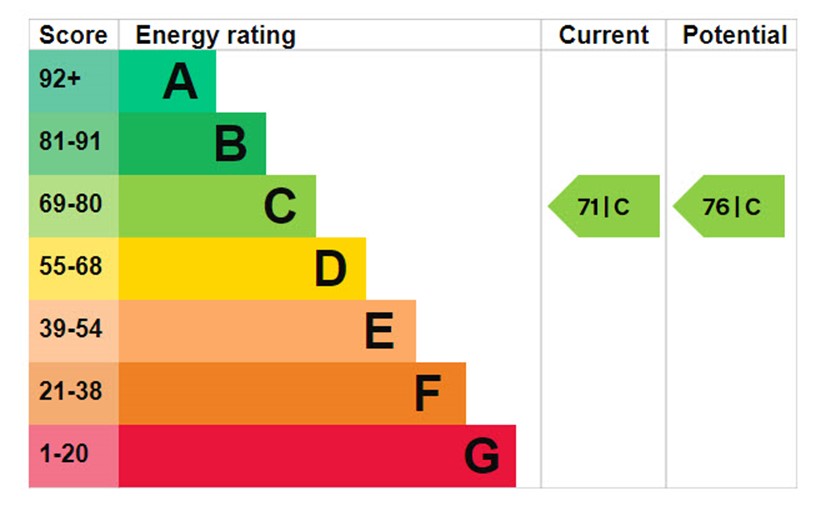
This article is about how we can use the tools we already possess. A web browser, an excel spreadsheet. I’ve tried to make it very simple and reigned back my skill set to keep this in reach of as many people as possible. I’ve picked a Nottingham City Homes tower block in Colwick at random, I am not affiliated or doing any work for them or any of their consultants. This is purely illustrative and because it is in Nottingham, is local to me and they are working to upgrade their housing stock as are a lot of social landlords.
Step 1
Get the EPC’s for the tower block by using the find my certificate service using the property post code.
https://find-energy-certificate.service.gov.uk/
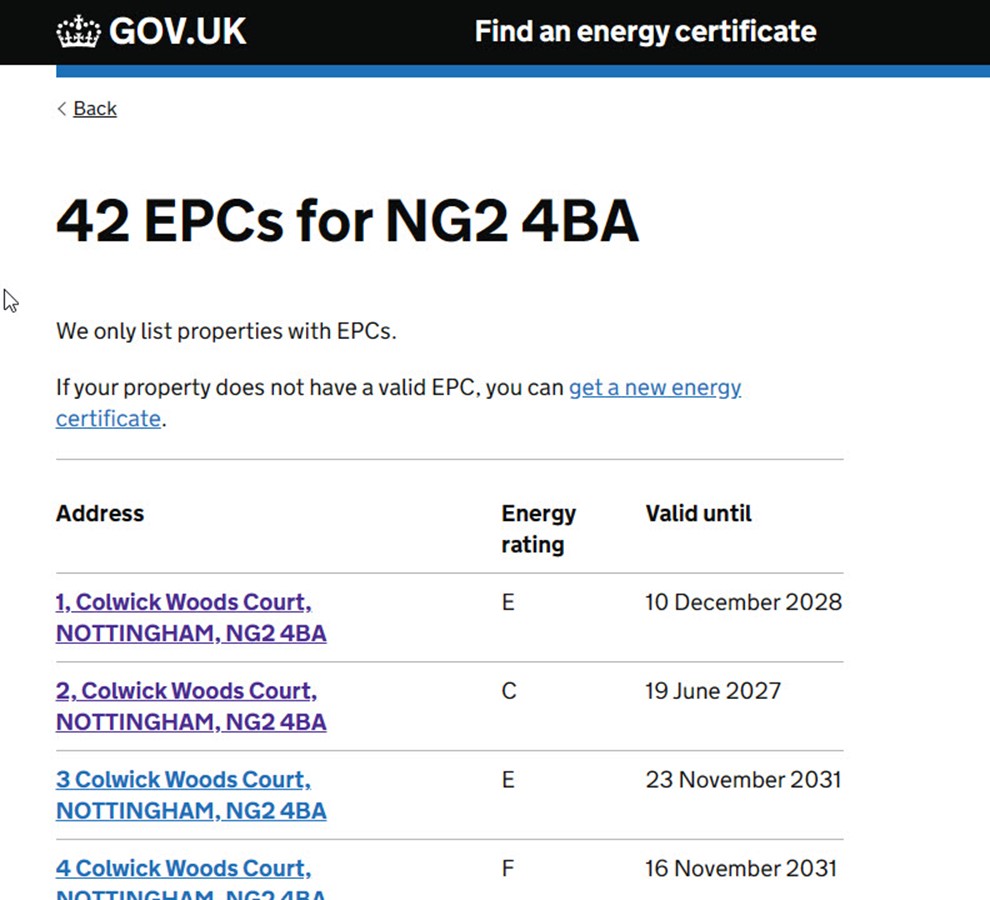
Step 2
Copy the table into a spread sheet (for a tower block there are probably more than one postcode) Call the Sheet URL
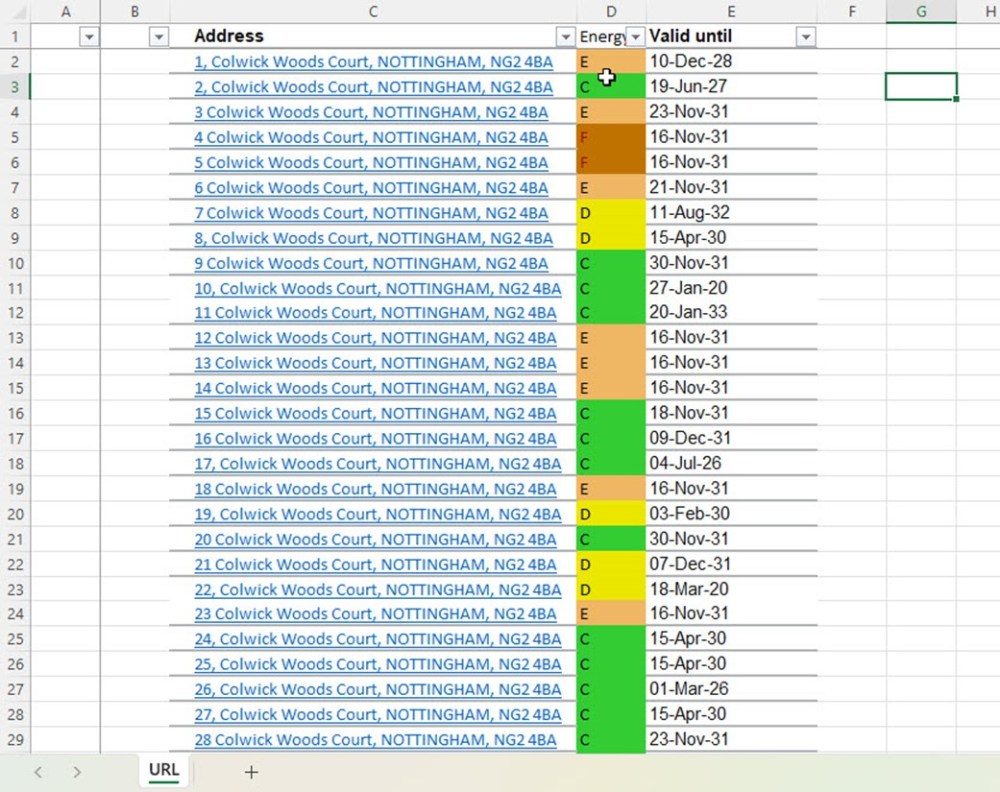
Step 3
To colour the cells create a set of conditional rules and apply this to column D
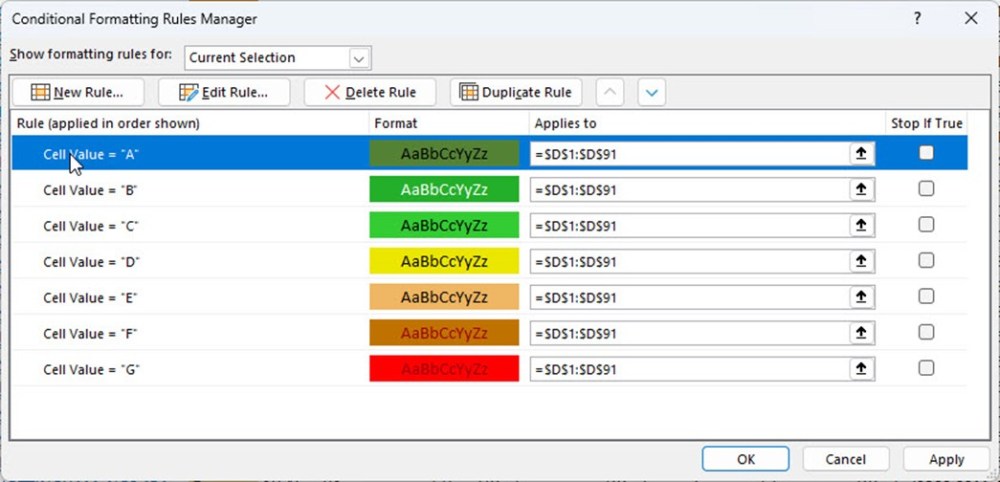
Use the format painter to add the condition to all the EPC grade cells.
Step 4
Save the spread sheet as xlxm macro enabled version. You will need to enable the developer option on the tool bar. Right click anywhere on the ribbon bar, select customise the ribbon, enable Developer. Select Developer then click Visual Basic.
Add a module to extract the URL from the embedded url cell column C as shown below.
Function URL(Hyperlink As Range)
URL = Hyperlink.Hyperlinks(1).Address
End Function
Use this a formula for to expose the URL in column F

Step 5
Order the cells into numerical order. I used a formula to extract the number from the address. I found that because the address is typed in by different EPA’s there maybe small difference in format
=SUBSTITUTE(IFERROR(LEFT(C2,FIND(“,”,C2)-1),C2),”,”,””)
Copy this down the cells. Once this is complete then order by number.
Step 6
On the assumption there will be the same number of flats per floor and the number of floor is known.
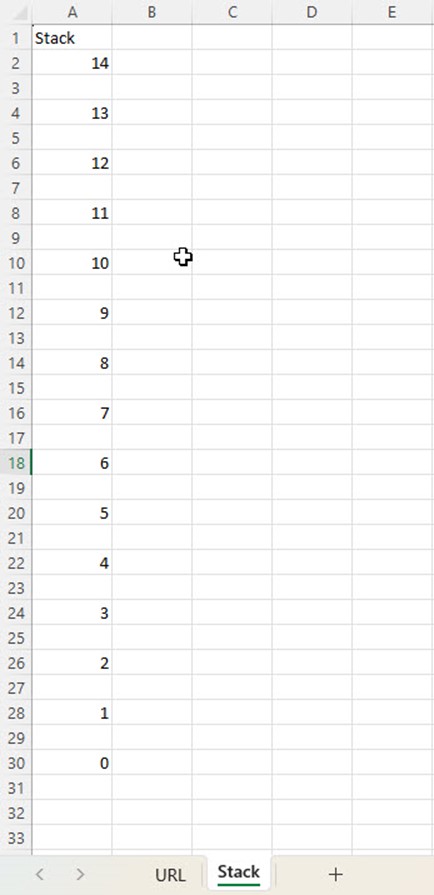
Create a sheet call Stack
Take the number of floor and double it go to the row of that number plus 1. Example 15 floors got to row 31.
On row 30 number it 0, then row 28 = 1 continue up.
Go back to the URL sheet.
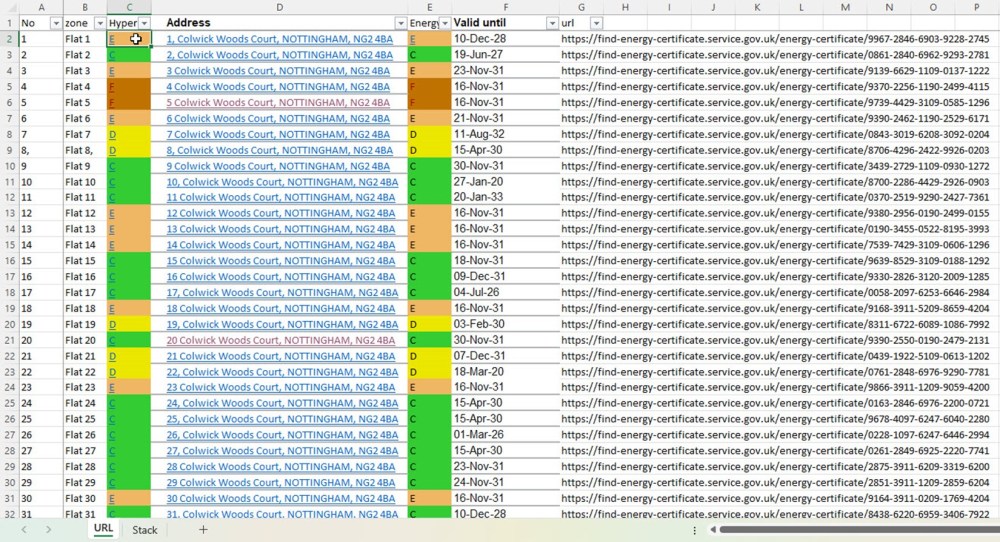
In Column B we will have the name of the Flat and Column C a hyper linked Value.
We need to add the formula in B2 = =CONCATENATE(“Flat “,URL!$A2)
In column C2 we add the formula =HYPERLINK(URL!$G2,URL!$E2)
Then copy these down the columns Note it is important to use the Sheet name syntax ! and the $ column because we are going to copy these cells to the stack sheet.
Step 7
Now we are ready to copy and paste the flats into the stack
Highlight the 1st floor of flats in column B & C move to the Stack sheet and paste on the 0 row column B. Paste and select the transpose button. This will take the 2 columns of cells and transpose them into 2 rows.

Continue this until the building is complete.
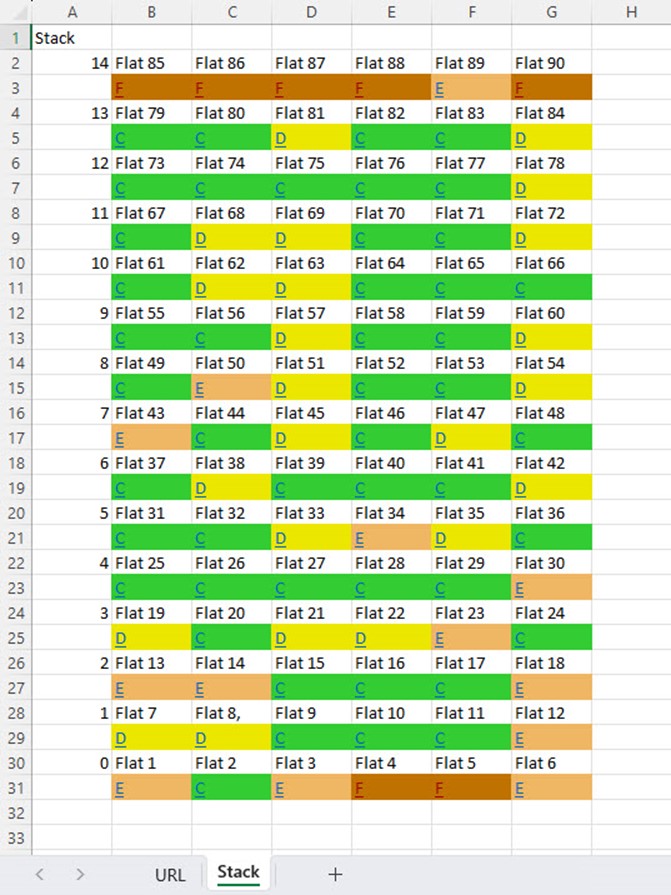
You now have a block of flats displaying their EPC ratings by Value Colour with a hyperlink to the online certificate.
We have automated the process by processing the data and creating an SVG file that can be easily viewed in any web browser.
The 2 inputs are number of flats per floor and number of floors.
Here is the completed stack.
 timAIKIN.com